


Hi there,
Here are few notes on how to set up a local server environment on Mac OS X by installing PHP, MySQL, and Apache using MAMP.
The goal of this post is to be able to have a sandbox (a local server environment) in order to create a web site prior to uploading it on the web.

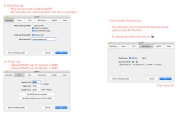
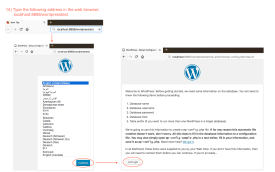
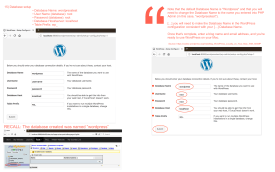
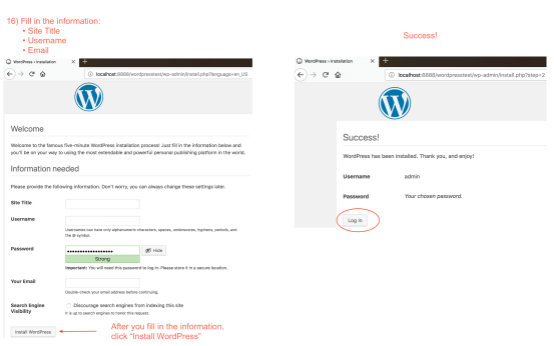
4 Steps to follow
There is already a webpage with steps to follow in order to get this done:
Installing WordPress Locally on Your Mac With MAMP
• The URL (http or https) designates the protocol that is used to locate the file or resource on the World Wide Web (www). In other words, the protocol is in charge of “calling” the server on the Internet World Wide Web.
Dissecting a web address (the URL)
http(s) :// www. (sub-domain.) DomainName. com
NOTE 1: Items in parentheses are optional.
For instance, let us dissect the web address for this site: PyProject where you are right now if you are reading these lines 😉

- Protocol : http
- DomaineName: pyproject.com
- Name of the web server: http://www.pyproject.com
- Top-Level Domain: .com
You can also have :
.net
.org
.edu
.ca
.fr
… - root folder :
The root directory of your website is the content that loads when visitors access your domain name in a Web browser.
Your website’s root directory depends on whether the domain name is your primary domain name or another type […]
Your primary domain name’s root directory is the root of the hosting account, which can be symbolized as a single forward slash (i.e. “/” without the quotation marks), or as an entirely blank field.
Source: GoDaddyIf all the wordpress files were directly placed into the htdocs directory, then the hierarchy be as follows:

Once your implementation has been finished, verify this by typing:
localhost:8888/Furthermore, if the wordpress folder was placed in the htdocs directory, then the hierarchy would be:

Once your implementation has been finished, verify this by typing:
localhost:8888/wordpress/Finally, taking this idea a step further, let us say that all the wordpress files placed in another file called toto, then the hierarchy would look like:

Once your implementation has been finished, verify this by typing:
localhost:8888/wordpress/toto/
hypertext access file (alias .htaccess file )
If needed, it is possible to delete the word from the root file.
.htaccessfiles provide a way to make configuration changes on a per-directory basis […]
.htaccessfiles (or “distributed configuration files”) provide a way to make configuration changes on a per-directory basis. A file, containing one or more configuration directives, is placed in a particular document directory, and the directives apply to that directory, and all subdirectories thereof.
Source: Apache.org
In addition, here is a useful tutorial in order to play with the .htaccess configuration file.
The Wikipedia explanation is also quite good:
A .htaccess (hypertext access) file is a directory-level configuration file supported by several web servers, used for configuration of site-access issues, such as URL redirection, URL shortening, Access-security control (for different webpages and files), and more.
Analogy by R:
htdocs est le dossier équivalent au dossier www sur ton serveur
Meaning, the htdocs file is the equivalent to the www-file on the server.
Sub-domain
In addition, let us say that I want to add a sub-domain like “portfolio”. Here is what the ulr structure will look like:
https://portfolio.pyproject.com/
-
-
- Protocol : http
- DomaineName: pyproject.com
- Subdomain: portfolio
- Top-Level Domain: .com
You can also have :
.net
.org
.edu
.ca
.fr
…
-
It is worth mentioning that the subdomain name replaced the “www” part.
GoDaddy has a usefule article on subdomains.
Furthermore, here is some info about the Domain Name System
The Domain Name System (DNS) has a tree structure or hierarchy, with each non-RR (resource record) node on the tree being a domain name. A subdomain is a domain that is part of a larger domain; the only domain that is not also a subdomain is the root domain.
Source: Wikipedia
IP address
An Internet Protocol address (IP address) is a numerical label assigned to each device connected to a computer network that uses the Internet Protocol for communication.
An IP address serves two principal functions:
• host or network interface identification and
• location addressing.
Internet Protocol version 4 (IPv4) defines an IP address as a 32-bit number.
Source: Wikipedia
Since we are setting up a local server environment, let us see the difference between a local IP address versus an external IP address.
External IP address:
-
-
- Given by: Internet Service Provider
When the web browser requests a webpage, it sends this IP address along with it.
It is worth mentioning that every website has its own IP addres.
If you are curious to know what is your external IP address, head to Bing or Google and type: “IP address” they will give it to you. - Dissecting the external IP address: Recall that the “Internet Protocol version 4 (IPv4) defines an IP address as a 32-bit number”
This means that the IP address has 4 blocks of numbers each ranging from 0 to 255.
- Given by: Internet Service Provider
-

Local IP address:
-
-
- Given by: Network Router
Routers with default settings provide a local IP address to all connected computers. This IP address is for internal use.
Since the goal of this blog post is to set up a local server environment, this will become handy.
The IP - Dissecting the local IP address: The network router will adjust the local IP addresses in order to provide hierarchical order information about the devices connected to it.
Most local IP addresses start like this: 192 . 168 . ___ . ___
The last digit represents the number of devices connected to it in the order of arrival.
- Given by: Network Router
-
MAMP administrator page
-
-
- WordPress ← App MAMP → Internet (www)
The objective is for WordPress.org to communiate with the Internet
- WordPress ← App MAMP → Local Network (Network Router)
- WordPress ← App MAMP → Internet (www)
-
Local ⇔ Web
locahost ⇔ http(s)
local server environment web hosting services
MAMP ⇔ Orongo/Bluhost/ …
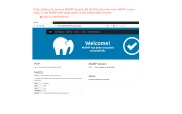
localhost:8888/MAMP
Port: 8888
Software used: MAMP.app
-
-
- Click MAMP icon
- localhost:8888/MAMP/?language=English
This step will open the MAMP dashboard - PHP
Click on php Info
localhost:8888/MAMP/index.php …
Apache port: 8888
NOTE: This status site will warn us if there are updates to do. - MySQL
Click on phpMyAdmin
phpMyAdmin Dashboard
• localhost
• 3306 → phpMyAdmin port
• root
• root
• /Application/MAMP/tmp/mysql/mysql.sock
• This dashboard will allow you to save a DataBase when time comesExport method → Quick (by default)
Import method → If there is a problem with the database and you need to re-install a database (previously saved), it will be done with this tab.
-
UTF8
According to Wikipedia, there are 52 official languages. So, the world has come with ways of writing these rich assortment of alphabets and characters.
The Unicode Character Table explains the UTF8 as follows:
A character in UTF8 can be from 1 to 4 bytes long. UTF-8 can represent any character in the Unicode standard. UTF-8 is backwards compatible with ASCII. UTF-8 is the preferred encoding for e-mail and web pages
Default configurations
-
-
- Apache Port: 8888
- Nginx Port: 7888
- MySQL Port: 8889
-
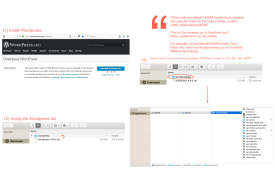
Downloading WordPress
If you are following the steps enunciated on “Installing WordPress Locally on Your Mac With MAMP”, the last step is the WordPress download.
Web-server: Apache
Macintosh HD/Applications/MAMP/htdocs
-
-
- Recall: htdocs is the root folder
MAMP document root: htdocs
- Recall: htdocs is the root folder
-
NOTE 2: The current PHP version is 7.2.1. So, befaure launching the website via the web hosting service, it will be important to verify the compatibility of the PHP version with WordPress.
NOTE 3: The local server environment can be on my computer as well as on the cloud.
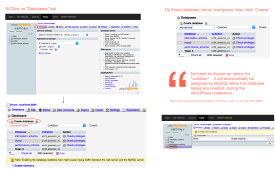
Database
wordpress → collation → create
Query
NOTE 4: Before launching the website online, change the DataBase host.
-
-
- Name: wordpress
- Username: root
- Pass…: root
- Host: localhost
-
Voilà!


 Python Project